The screens
Once your request is in, your job is to watch. This chapter walks the screens in that order. It starts at the board, which shows the whole queue, goes into a single ticket, and from there down to what the session holding that ticket is doing right now.
Inside a project the header carries five screens. Board · Squads · Protocols · Ontology ·
Workers. Squads is also where you edit personas, so it gets two chapters
(Personas · Squads). Group view, at the top of the left-hand
list, splits those two jobs. Turn it on and squads are the axis; turn it off and the persona list
comes up on its own. It ships on. The other two have their own chapters as well
(Protocols · Archiving and the ontology). Here we look at
the board, the workers, and the things hanging off either end of the header.
Press Esc on a ticket detail or the epic screen and you come out to the board. Pasting the
address straight into a new tab makes no difference. There is no history to walk back, and the
destination is the board either way. If a dialog or the switcher is up over the screen, that
closes first and the screen underneath stays where it was.
Anywhere else, pressing it does nothing. That is true of the board, Squads, Protocols,
Ontology, Workers and the project home, and of a file you opened in the ontology, a persona
you picked in Squads, the sort and filter you set on the board, and the surface and tabs you
have open on the home. Nothing is broken. The two screens above are the only ones with a
destination set. And while you are typing in the interject box or a ticket editor, pressing it
moves nothing. What you were writing should not go away on one Esc.
The board
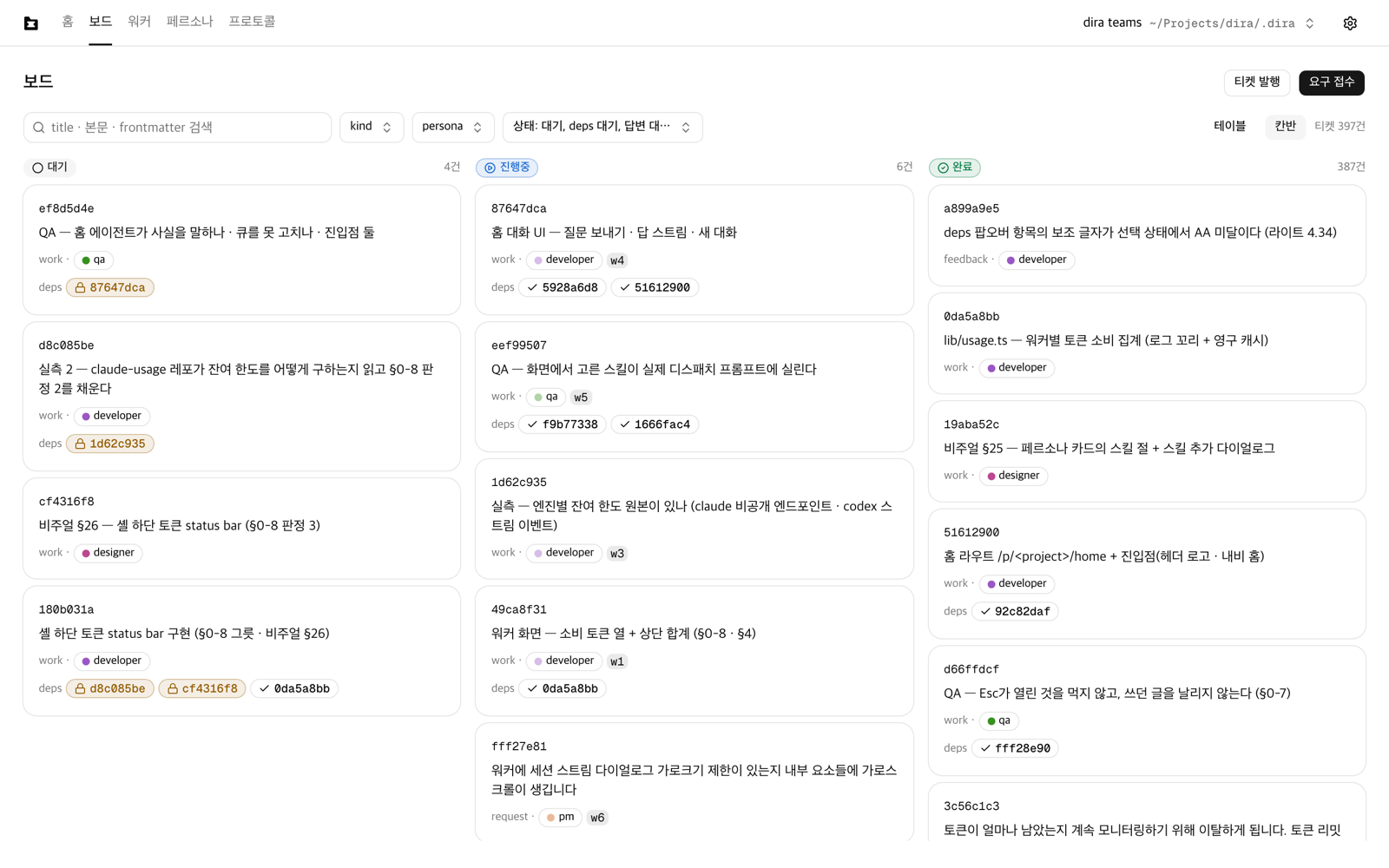
Three columns divide the screen vertically. One column is a lane, and from the left they are Open · In progress · Done. One card is one ticket file.
You do not drag cards around. When the suffix on the filename changes, the card moves to the next lane by itself (see The states a ticket passes through). The engine decides state, so there is nowhere for you to put a card.
- A blocked ticket sits in the
Openlane with the rest. The only difference is the orangedepstag on its card, and theBlockedbadge beside it. Being blocked is a matter internal to that lane, so it clears itself once the prerequisite finishes. Nobody has to touch it. - An in-progress card tells you three more things. A dot in the persona's color moves, the
worker mark (
w6) for whoever is holding the ticket right now sits at the end of the meta line, and the bottom of the card carries one line saying what that session just did. A done card has none of the three. Theowneron a finished ticket is a record, not the worker holding it. - A ticket waiting on an outside condition sits in the
Openlane too. Its card carries aPollingbadge with the time left, and one line under it saying what it is waiting for. Past the deadline the badge turns intoDeadline passed(see The states a ticket passes through). - A done card with an archive ticket on it says how far archiving has got, in that same spot.
There are three:
Archiving — queued·Archiving·Archiving — awaiting answer(see Archiving and the ontology). - The Done lane draws 20 at a time. Scroll to the bottom and 20 more attach. It is not hiding
anything, just drawing in batches. To take it all in at once, there is the table view
(
?view=table) and the filters.
The ticket page
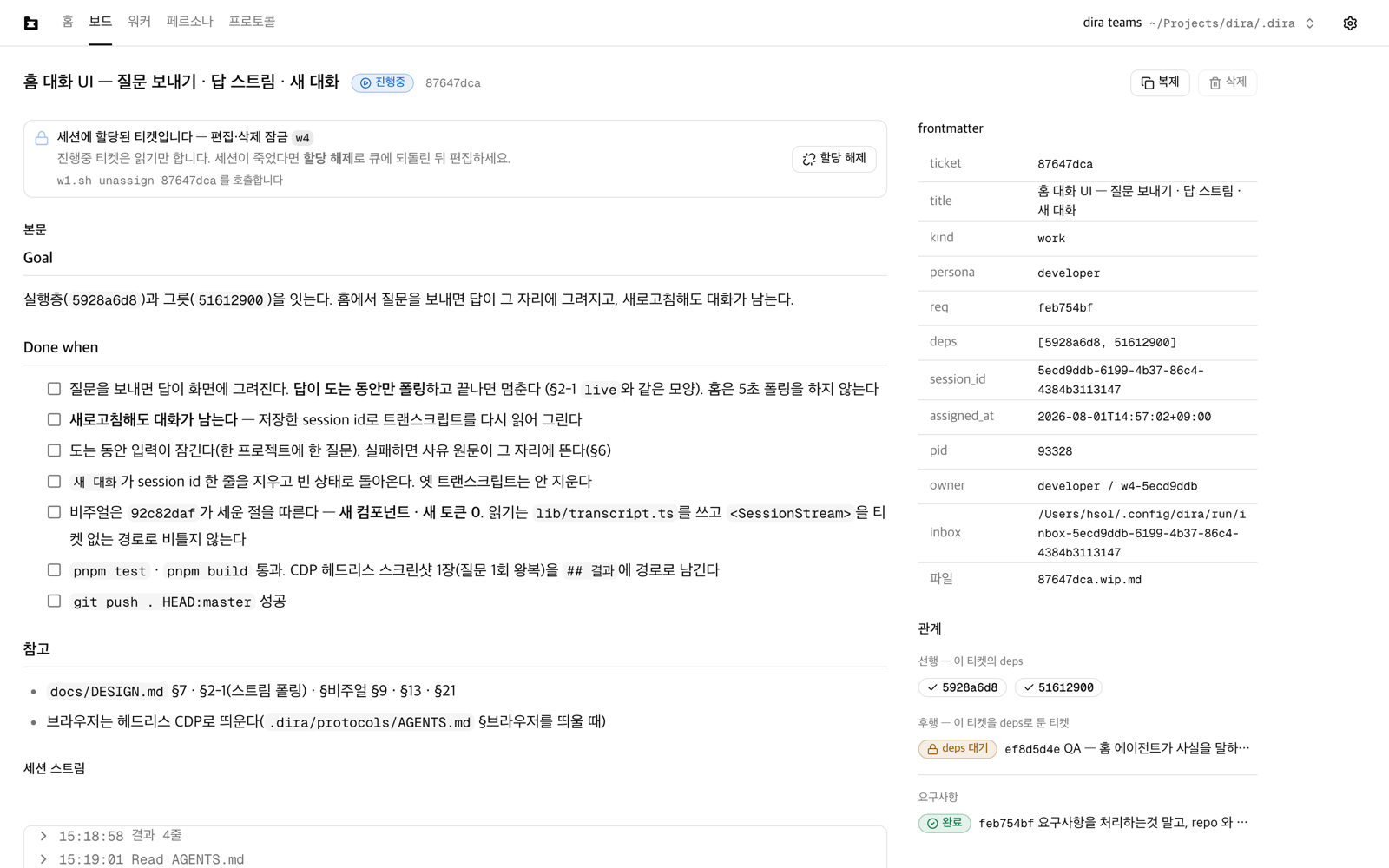
Press a card and the page for that one ticket opens. The left side is what you read and write, the right side is what you glance at.
- The left holds the markdown body someone wrote and the
## Done whenchecklist. The progress record shows up here too. - At the top of the right, one line says how many times this ticket came back, like
Reassigned: 3. That is the number of times a worker could not finish it, it went back to the queue, and it got handed to someone again. A ticket that finished on the first pass, or that nobody has claimed yet, has no such line. - Below that come the frontmatter table and the relations. frontmatter is the block of settings
written between two
---lines at the top of the ticket file. For relations, the top line draws[prerequisite] this ticket [dependent]. Under it, one more line each shows up only when there is something to show: which request this ticket came from (source,req:), and the archive ticket that moved this one into the record.
Reassigned is a different number from attempts in the frontmatter
table. Two numbers on one screen are easy to confuse. They count different events. Reassigned
counts every time the ticket was handed to a worker, without exception: the session ended in an
error, a more urgent ticket pushed it aside, a person unassigned it — all of them. attempts counts
one
of those, the case where the engine found a session dead and reclaimed the ticket automatically.
Of the 3,104 times a ticket went back in this queue, attempts went up 149 times, or 4.6%. The
ticket that came back the most was reassigned 273 times, and its attempts line is empty. An
empty or 0 attempts does not mean the ticket had an easy run.
The session ticks the Done when boxes as it works. They are not boxes for you to press. The
only one who knows whether an item is finished is the session doing it. So each time it finishes
an item, the session changes - [ ] to - [x] in the ticket file. This is where you look to see
how far a running ticket has got.
This page keeps up without a refresh. When the session adds a line to the body, the line
appears; when - [ ] becomes - [x], the box ticks. It is not just this one ticket. What
triggers a redraw is the single fact that the queue moved, so the badges on the prerequisite and
dependent tickets in the relations, and other people's hashes written in the body, change along
with it. If the prerequisite that was blocking you just finished, its badge turns to done. It
works the same for a ticket in any of the three lanes. Leave an open ticket on screen and you see
the moment a worker takes it; the body of a done ticket has nothing left to change, but the states of
other tickets written in it keep up.
A running ticket is read-only. The session is holding the file. Press Unassign in the lock card
and the file goes back to the queue. Only then can you edit it by hand.
The Working in browser section on a ticket holding one
While a worker is driving a browser, that ticket gets one more section in the right-hand column.
It comes right under the frontmatter table and above Polling, and it is called
Working in browser. The screen the worker is on lies open directly beneath the heading.
There is nothing to press and no arrow to unfold. The picture is there from the moment the section appears, and it is live: turn the page on the worker's side and the picture turns with it. The browser runs without a window, so this section is where all of it shows. The picture fills the width of the column and takes its height from the shape of the worker's screen. For the short moment before the first frame lands, the heading stands alone.
A ticket not holding a browser has no such section. No heading, no dimmed line, no empty box. Open the ticket again once the worker has finished and handed the browser back, and the section is gone.
You cannot touch it here. Press on the picture and the worker's page does not budge. This is a place for watching. It is shut off so that an idle click of yours never shakes a screen the worker is measuring.
When you do need to touch it, press Open in home tab at the right-hand end of the heading row.
You land on the Browser surface at home with that ticket's tab picked. One approval there and
your mouse and keyboard go through (see Terminal, files, and source control).
The heading row carries no owner name and no dot. Here the owner is always this ticket, so
there is nothing worth writing twice. Those two markers stand on the Browser surface at home,
where every browser a project has opened gathers in one list, and that chapter reads them for
you.
Narrow the window until the two columns fold into one and this section keeps its place in the order.
The Polling section on a waiting ticket
Only a ticket waiting on an outside condition gets one more section in the right-hand column. It
comes right under the frontmatter table, and it carries the same name as the badge on the card:
Polling. There are five rows.
| Row | Value |
|---|---|
Reason | The one line that showed under the badge on the card. It is the first line of the last ## 결과 (the result section) in the ticket body, and with no such section there is no row |
Script | The name of the file that decides the condition. It lives under polls/ in the queue root |
Interval | How often it gets run (300s). With nothing written in the script header, Every tick |
Deadline | How long the wait runs and how much is left. Past it, Deadline passed takes that spot |
Last polled | When it last ran. Never run yet reads Not run yet |
Under the rows, the Script body and the Last output open up whole. Why it will not clear is
usually written in that output. If the file is gone you get Script file not found; if it has
never run, No output yet.
Two handles at the bottom of the section break the wait before the deadline. Dispatch now
puts the ticket back in the candidate pool regardless of the condition. It wakes a worker on the
spot instead of waiting for the next tick. Extend deadline writes the time in the field beside
it as the new deadline; the field comes pre-filled with the deadline you have, so you only push it
as far as you need. There is no confirmation dialog. What it undoes is one worker command, so it
is not a destructive operation.
Neither one makes an answer file. Nobody asked a question, so there is no answer to write. There
is exactly one place an answer file is born — after the deadline passes and the ticket locks as
Awaiting answer — and that screen looks like any other question (see
The states a ticket passes through).
Links inside the app
An address written into a ticket body, a deploy URL printed in the progress record, an
http://localhost:3000 your terminal just spat out. Press a link like that inside the app window
and the built-in browser opens it. Your Mac's default browser stays shut.
The press lands you on the Browser surface at home with a tab named Link already picked. A row
by the same name stands in the list on the left, alongside the rows workers and the home chat
hold, and the hash beside it reads c0ffee00.
Every link after the first reuses that tab. Press a hundred links and there is still one browser. That keeps links from eating the slots a worker needs to borrow.
In the terminal, only text starting http:// or https:// becomes a link. Hover and it picks up
an underline; press it then. A full stop or closing bracket riding on the end of the address is
trimmed off.
Links on the landing page and in this manual go to your default browser. Those two screens open in a web browser with no app at all, so they sit outside the product and skip the built-in browser. Links to screens inside the app, and anchors within a page, behave exactly as before. What gets caught is outside addresses.
The address bar
One line carrying the current address stands in the head row of a browser tab, right under the
owner's name. Every browser tab has it. Turn the page on the worker's side and the value follows.
The Working in browser section on a ticket has no such line; that place is for watching.
Link is the only tab where you can edit the address. There the line is a field: clear it,
type another address, press enter, and the browser goes there. Type example.com with no scheme
and https:// gets put on the front for you.
On every other tab the same line is read-only text. What decides it is who opened that browser.
The screen opens exactly one browser, Link, and that is the only one the screen may drive. The
browsers workers and the home chat hold belong to a session at work, and an address you swap out
from here would throw off what that run is measuring.
Nothing outside http: and https: is accepted. Put in a value starting javascript:, press
enter, and the browser stays where it is.
Handing back a browser you are done with
Release sits at the right-hand end of the address bar on the Link tab. Press it and that
browser goes away on the spot, and its row leaves the list on the left. The next link you press
opens a fresh one.
No other tab carries this button. There is still no way for you to take back a browser a worker is holding (see Terminal, files, and source control). The screen only takes back what the screen opened.
Sending a page out to the default browser
Press Open in default browser beside the address and the current address opens in your Mac's
default browser. Every browser tab has this button. On a tab with no address yet it does nothing.
The built-in browser has no back button and no bookmarks, and it inherits none of the logins from the browser you use every day. A screen you have to sign into with a Google account, or one that needs an extension to work, is what this button is for.
When the slots are full
Six browsers run at a time. With the Link browser already up, the limit does not come into
it. All that runs then is one move to a new address, so no new slot gets borrowed.
With no Link browser and all six slots taken, pressing a link raises one line of toast.
Browser slots are full (6/6) — can't open the link.
The screen stays where it is. The app will not take back a worker's browser to make room either. Wait for a worker to finish and free a slot.
Hashes and P numbers in the writing
Open a ticket body and you find other tickets' hashes all over it. A session writes things like
"the back half goes to 8b7c1021". Press those eight characters and that ticket opens. You never
have to copy one into the address bar. We will call text that works this way a marker.
Two kinds of value become markers. The eight-character hash of a ticket in the queue, and an
epic number (P273). A small circle sits in front of a ticket hash to say its state. An empty
circle is open, a circle with a triangle in it is in progress, and a circle with a check in it
is done (the same three you saw in
The states a ticket passes through). Epic numbers get no circle. An epic has no
state to show. Both are underlined, so you can see which text you can press.
That circle points at the queue as it is now. Not as it was when the line was written. Open a ticket that finished long ago and the hashes in its progress record still carry today's state. It can even change while you watch. If the hash of a ticket you just handed off is on screen, you will see the triangle turn into a check right there.
The text itself does not change. A hash shows as its eight characters with no title trailing it.
Tickets where a single ## 결과 (the result section) fixes more than ten hashes are common here.
Drag a title into every marker and that paragraph grows several times over. If you want the title,
rest on the marker for a moment.
Hashes wrapped in backticks work too. This queue writes them as `8b7c1021` more often than
not. The gray pill keeps its shape, and only the circle goes outside the pill.
Where they work
Everywhere someone wrote for people to read. Ticket bodies, the session's words running through the progress record, the back-and-forth thread in the answer form, epic READMEs, persona memory, the conversation on the project home.
Ticket titles work as well. Titles on board cards and table rows, the title at the top of a
ticket page, and the ticket lines the warning box at the top of the squad screen draws in a row.
In a title like 아카이브 - 73f89584, the eight characters at the end become a marker. So one
board card has two destinations. Press the hash in the title and that hash's ticket opens;
press anywhere else on the card and you get that card's ticket, as before.
The editor you use to change a body has no markers. That is where your cursor goes while you are editing, so we left them out on purpose.
Rest on one and a card appears
Put the pointer on a marker and wait 0.6 seconds and a card appears. Passing over it does nothing. Writing with more than ten markers in a paragraph is normal in this queue, and if cards fired one after another just from a pointer going by, that is not a feature, it is noise.
A ticket card holds four things. The state badge and the hash, the full title, the first three
lines of the body, and the persona in charge. The title is not truncated. The body preview skips
heading lines like ## Goal and starts from the first line of prose. An epic card holds four as
well. The P number, the first line of the README, the body preview after it, and the counts for
open, in progress, and done.
There is nothing to press inside a card. One marker, one destination.
You do not need a mouse. Tab to a marker and the same card appears.
Eight characters that do nothing
Not every eight-character hex string works. A marker appears only when that ticket is actually in the queue.
The commit hashes written in a ## 결과 section have exactly that shape. 3f05446e, say. They
are not values in the queue, so they stay as plain text. We do not even draw a faded marker.
Draw one and false markers outnumber real ones in this queue. Nothing being pressable is not a
fault. It means the value lives outside the queue.
Four more things go by quietly for the same reason.
- Epic numbers that do not exist.
P999is just text. - Anything inside a code block. What sits inside triple backticks is a command and its output,
where the literal text is the value, and eight characters in there are usually a commit hash
git logspat out. - Text that is already a link. You cannot put a link inside a link.
- Anything with characters attached. The last eight characters of the session ID
w4-1d21592fare not a marker, and neither is the roadmap rowP303-1. We only catch them when what comes before and after is neither a letter nor a hyphen.
The session stream
You watch, live, how the session holding a ticket is getting on. It has the shape of tail -f,
the command that follows a file as it grows. By default it is one line per event. Which file it
read, which command it ran, what it wrote.
- The source is not a log the app writes for itself. It reads the transcript Claude Code is already writing in real time. A transcript is the record file where a session's words and tool calls are written down in order. The number of files that grow for the sake of this screen is zero.
- A replay of a finished session lives in the same place. Open a done ticket and what that session was doing when it ended is still there, in the same shape.
- Only
claudeandgrokhave a stream. For a ticket held by acodexoragyworker this area is empty. The empty area tells you which engine it was. It is missing because that engine writes no transcript, not because something broke.
Three doors into the same record
Three doors open this record.
- The
Progress recordbox on the ticket page. It is already open when you open the ticket, so there is nothing to press. - The
Streambutton at the right of a row on the workers screen. It only works on a row that is running and whose ticket we know. On the other rows the button just holds its place. Expand, at the far right of theProgress recordheading line on the ticket page. It reopens the very record the box above is reading, as a dialog.
The three read one file, but the screen splits two ways. The axis is the container. A box inside a column, or a dialog covering the screen. Which screen you came from does not matter. The first door opens the box, and the other two open the same dialog no matter which side you pressed.
| Inline box — there as soon as you open a ticket | Dialog — Expand or Stream | |
|---|---|---|
| The time at the head of a line | Clock time, like 14:32:07 | +02:02, time elapsed since the session started |
| Pressing a line | The raw text unfolds under that line | The right-hand column takes the event |
| Search and filters | None | One row above the list |
| How many times each tool was called | None | A row of chips under the head counts them |
How Result is drawn | The raw characters | As markdown, and the raw text when you press the badge |
The reason they split is the size of the container. The box sits in a column shared with the body,
the Done when checklist, and the questions and answers. The dialog covers the whole screen while
it is open, so there is room for a search field and a right-hand column. That extra room is where
a panel for looking closely at one event goes, and that is why the door is called Expand.
Opening with Expand loses nothing you had in the box. The plan-step accordion, the question and
answer bubbles, and the field for talking to the session are all in the dialog too, with search and
the right-hand column laid on top. The one thing that does not follow you in is the token figure on
the heading line. Close it and the box behind is exactly as you left it.
Expand only shows up on tickets that have the box. A request just after submission has no
session record and no bubbles yet, so there is no box at all, and nothing more to look into.
The inline box gets its own chapter below, under Progress record. Here we look at the dialog.
The dialog's head and toolbar
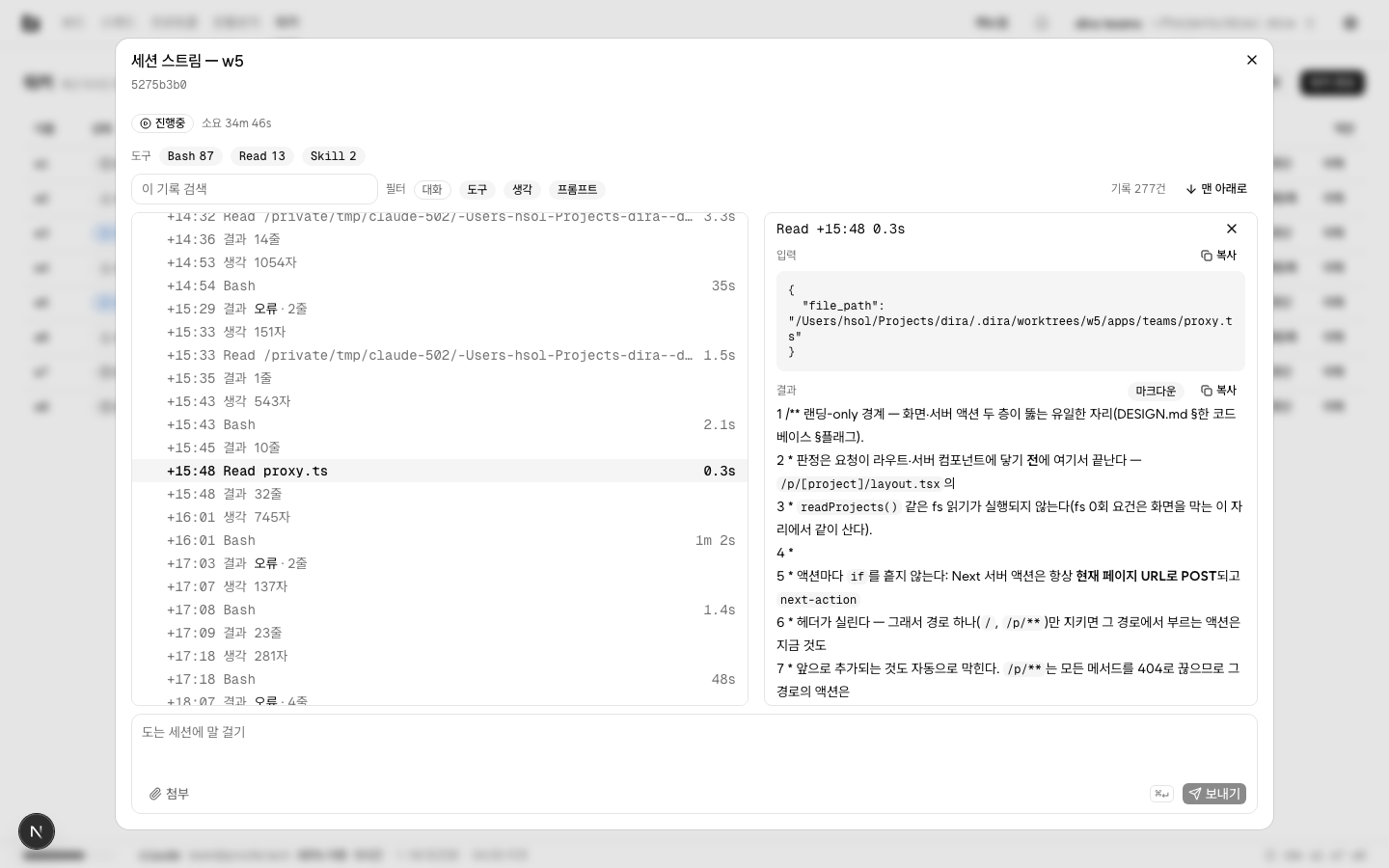
The top line changes with the door you came in by. Open it from the workers side and it reads
Session stream — <worker name>; open it with Expand from the ticket page and it reads
Progress record, the name of the section. The ticket page does not repeat the worker name. There,
the big title at the top already says whose record this is. The line right below is the ticket hash,
through either door.
Two more things attach below. Whether the session is alive comes up as one word, Running or
Done, with Elapsed 12m 30s beside it. For a live session that is measured from the first event
to now, and for a finished one from the first event to the last.
The row of chips below counts what this session did and how often. A tool name and a count go in one
chip, like Bash 14, and the most-called ones sit leftmost. The names are as the engine called
them, so they are in English. It counts everything, including what is folded away, so this row is
right even when you have unfolded nothing.
Under the chips is the toolbar. It stays put while the list scrolls. On the left is the search
field, with Search this record as its placeholder. It sweeps tool names and one-line summaries,
and also the raw text you would otherwise only see in the right-hand column, and it ignores case.
While you are searching, anything folded opens. That means the bubble groups, and also plan steps
that are finished or cancelled. Filter with things left folded and a matching line hides inside,
and the search lies to you. Clear the search term and only what you unfolded by hand stays open.
To its right are four filters. Messages · Tools · Thinking · Prompts toggle on and off. All
four ship on, and that state is the screen with nothing filtered out. When you only want to see
where a command went wrong, leave Tools.
One more chip sits to the right of the filters: Group by step. It ships on, and that is when the
list is divided into the steps of the plan. Turn it off and the grouping comes apart. The step
headings go, and events and bubbles run from beginning to end as one stream in time order. Press it
when you want to read what the session did and in what order, rather than how far the plan has
come. Press it again and the accordion is back. The state is kept nowhere. Close the dialog and
open it again and the chip is on.
Turning it off hides no record. This is where the chip parts from the four filters on its left.
The filters take events away; this chip only undoes the grouping. Records 128 at the far right of
the row is what is left after filtering, so a search term or a filter you switch off makes it drop.
Pressing this chip never does.
The chip is only on the dialog you opened with Expand, and only on a ticket that has a plan.
With nothing grouped there is nothing to ungroup. The one you open with Stream from the workers
screen does not read the ticket body, so it knows nothing about steps. Two doors open the same
dialog, as written above, and this chip is the one place they part. Without it the search field,
the four filters and the record count are all still there. The picture above was opened with
Stream, which is why there is no chip in it.
When search and filters leave nothing, one line remains in the list: No matching records. The head
and the chip row stay as they were. What you filtered is the list, not the work the session did.
Reading one line
In the dialog the time at the head of a line is +02:02 instead of the clock time. It is measured
from this session's first event. It means this happened two minutes and two seconds after that
first event. The clock time has not gone anywhere. Put the mouse on that cell and the old
14:32:07 comes back.
At the far right of the line is how long the tool took. The value is the gap between the time the
tool was called and the time the result came back. So it appears only on the line that called the
tool, and the result line does not repeat the same number. Under ten seconds it reads 8.0s, over a
minute 3m 50s. A tool whose result has not arrived leaves this cell empty. A command running right
now is like that.
Input and result in the right-hand column
Press a line and the right-hand column of the dialog takes that event. The head of the column repeats the tool name, the time and the duration, and two sections sit below it.
Input is what was handed to the tool. On a line that changed a file, it goes as far as what came
out and what went in. Result is what came back, and if nothing has come back yet the section is
not there at all. A failed result carries the word Error.
Result comes up as markdown the first time. A line starting with ## becomes a heading, and a
line with | in it becomes a table. Line breaks stay as they were. Output a tool spits out often
means one thing per line, and merging several lines into a paragraph loses that meaning.
When you need the raw text, press the Markdown badge at the right of the section heading. The
badge turns off and the characters that section received come back exactly. Press it again for
markdown. This state is not kept anywhere. Pick another line in the list and the new Result is
markdown again. Only the Result section has two faces; Input is always raw.
Each section has a Copy. Whichever face you are looking at, what lands on the clipboard is the
raw text. Press it while reading markdown and you get the characters from before it was drawn.
This is where you read one tool call's input and result side by side. That is why nothing unfolds under the line in the dialog. We do not draw the same thing in two places. The inline box has no right-hand column, so there the raw text still unfolds under the line, as it always did.
With no line picked, the column carries Pick a row to see its input and result. The column itself
does not disappear. Press the close button at its top right and the selection clears and that
sentence comes back. On a narrow window the column drops below the list instead of sitting to its
right.
What you can pick is an event line. What a person wrote and what the session said to a person are already fully visible as bubbles and prose, so there is nothing to press.
Progress record
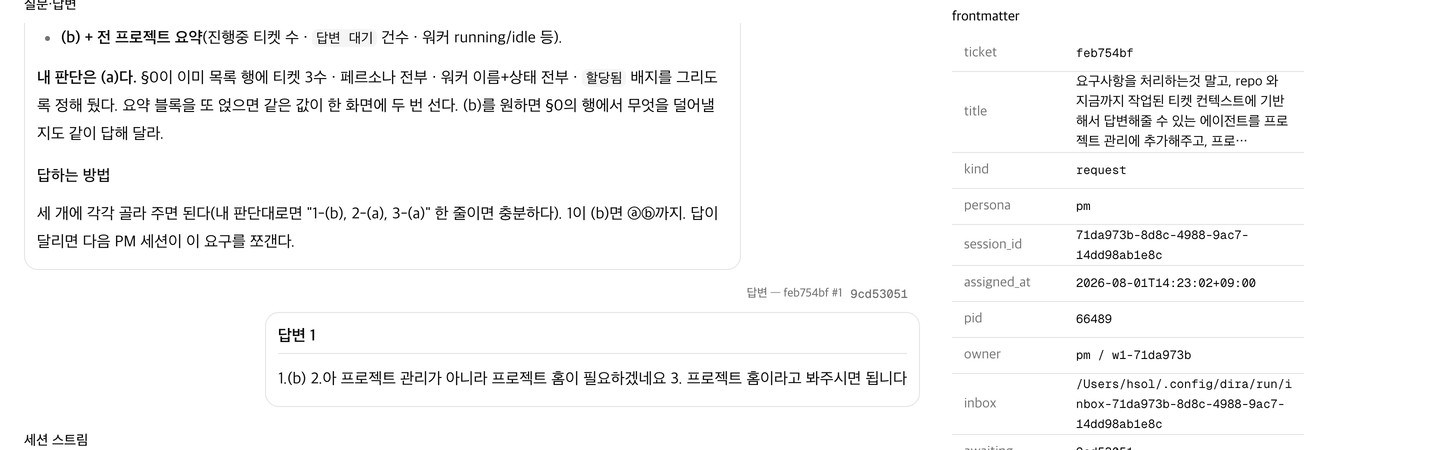
Stream lines and question-and-answer bubbles sit in one box in time order. That is why the section
is called Progress record. This place answers one question. What has happened to this ticket so
far.
Open a running ticket and the box is divided into steps. Before it starts work, the session holding the ticket writes down for itself what it will do and in what order. It is not a list a person hands over. Each line it writes becomes one step in the box, and unfolding that line shows what happened while it was on that step. Read top to bottom and you see at once how far the ticket has come and what is left.
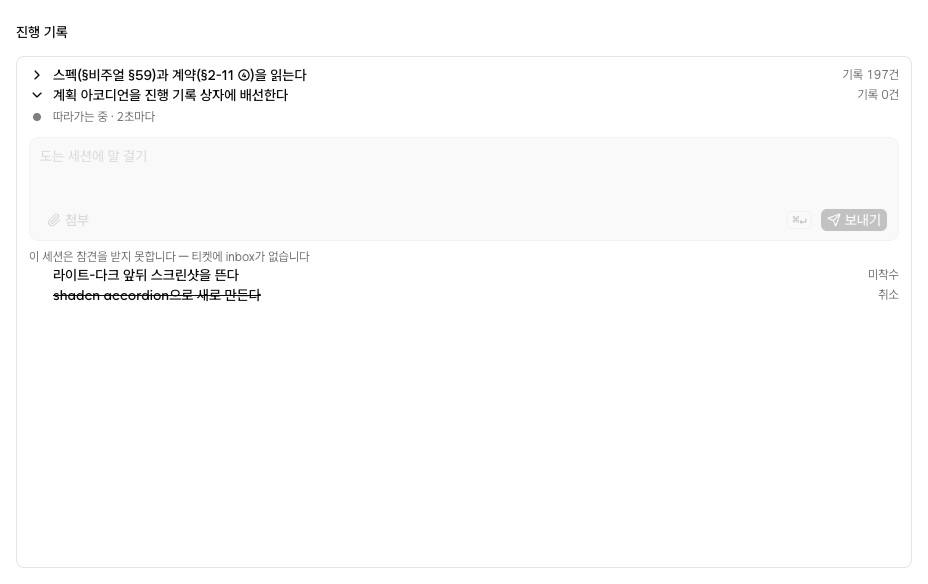
A step comes up in one of four shapes.
| Step | Shape in the box |
|---|---|
| Finished | Folded. The end of the line carries the count piled up on that step, like Records 12, and pressing it unfolds it |
| Running now | Open. Events attach inside it live |
| Not started yet | Only the title. The end of the line reads Not started, and with nothing to unfold there is no handle |
| Abandoned | A line through the title, and Cancelled at the end of the line |
The field for talking to the session is inside the running step. The bottom of that step is where you push one line into a running session (see Talking to a running session). With no running step it goes at the bottom of the box, as before.
A session does not revise a list once it has set it. It does not delete lines, reorder them, or add to the end. If the plan goes wrong along the way it strikes through the remaining lines and hands the rest of the scope to one new ticket. People read that list and guess when something will finish, and a list that moves quietly voids that guess every time.
One more panel attaches above the plan list and one below. Assignment and Wrap-up. They are
folded in the same shape as a step and open when pressed, but no count sits at the end of the line.
A word and a handle, and that is all.
| Panel | The stretch it holds |
|---|---|
Assignment | Up to the moment the first step catches an event. The session taking the ticket, reading the body and working out what to do in what order goes in here |
Wrap-up | From the moment the last step caught its event. Pushing the commit, leaving a retrospective, writing ## 결과, and renaming the file to .done |
The two are not steps. They repeat the same way on every ticket, so the session does not write them
into the plan. That is why they wrap the list from outside it. When there is nothing inside, the
panel does not appear either. That is why you do not see Wrap-up on a running ticket. The running
step is holding events right up to this moment, so there is nothing after it. This panel first
appears the moment the session ends and later events pile up. A ticket with no plan written yet, and
a ticket that finished before this list existed, have neither steps nor the two panels. That box is
one event per line, the way it used to be.
The screen looks at the times the session wrote down and attaches events to steps. Each line in the list has the time that step started and the time it ended, and events that happened between the two go inside that step. When several steps carry the same start time, the events in that stretch get shared out in the order the list gives.
Some tickets have written times that do not match reality. When a session writes times by eye instead of reading the clock, that range does not overlap the time the session actually ran. Then only a few steps catch events by their own times, or none do. Where a step caught nothing, the screen falls back to order. It cuts the flow of events into a few blocks in the order they happened, and the steps sitting there take one each from the top.
Dividing it that way is a guess. Which step an event actually happened in is not written in the ticket file. On a ticket with times that do not match, there is no ground for believing the events inside a step really belong to it. On a ticket whose times were read off a clock, this guess never gets in.
Events left between two steps are as they were. There is no named panel for them. They just appear in time order, in that space between the two steps.
Unfold a step and several lines come out. One line is one event. The time it happened comes first. The next cell is the kind of event, and after that a one-line summary.
A session works by reading files and running commands. Each of those means is a tool. On a line
calling a tool, that tool's name appears as it is. Bash means it ran a command and Read means it
read a file. In the summary spot, what that command was trying to do goes in a word or two. For a
tool that touched a file, it is the file path.
What came back appears on the next line as Result, with how many lines came back in the summary
spot. Thinking slips in between sometimes. That is where the session thought to itself before
speaking, and usually it does not open, so you only see the length. What the session says to a
person does not come as a folded line. It carries Session at its head and runs as prose. There is
no time on it.
Press a line and the raw text replaces the summary. The full command that ran, the full result that came back, and on a line that changed a file, what came out and what went in.
A wrong result looks different. On a result line that came back from a failed tool, the word
Error attaches in front of the summary. That word alone is heavier than the rest. A good result
line carries nothing, so the ones that do catch your eye. We use no color. Print it in black and
white and the word is still there.
You need this marker when a ticket has been running a while with no visible progress. That is when
you go looking for where it went wrong yourself. Press a line with Error on it and what the tool
said back comes out in full.
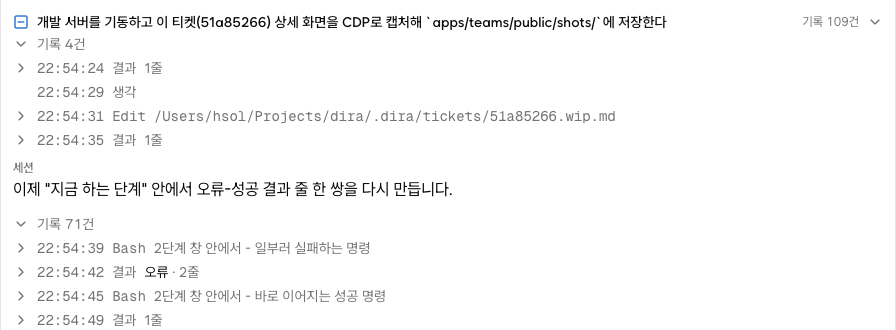
There is no switch for showing errors only. There is no place counting them either. Sweep the box
and look for Error. An error inside a folded step shows only when you unfold that step. The
running step is always open, so an error a live session just made is visible without opening
anything.
The round trip where a session gets stuck, posts a question, and a person writes an answer belongs before and after the session's own progress. So there is one box, one scroll and one input field. What that field does is decided by the ticket's state. The three are mutually exclusive.
| Ticket state | What the field does |
|---|---|
In progress (.wip) | Interject — pushes one line into the running session |
| Awaiting answer | Answer — you write the answer to the question the session posted. Once the answer exists as a file, the lock comes off |
Done (.done) | Follow-up — opens one new ticket that takes this one over |
A question with no answer yet sits at the very end. The field for writing that answer is right below it, so question and answer are next to each other.
The token figure on the heading — how much of the limit this ticket burned
Right beside the Progress record title, This ticket 48M tokens comes up in gray, with
Sessions 1 after it. Those are the tokens the sessions that held this ticket exchanged. We add up,
as they are, the four numbers the engine writes into its own accounting when a session ends. Input,
output, what was written to cache, and what was read from cache. It is not a figure we estimated by
multiplying a unit price. This ticket, in front of the number, says whose it is.
It tells you how much you burned. It does not tell you how much it cost. On a flat-rate plan, what people actually ask is how much of the limit it ate. So the unit is tokens, not money. The trade is that the order by money does not come out here. Most of those four are tokens read from cache, and their unit price is a fiftieth of output's. A big number is not an expensive ticket. Two tickets in this queue that differ 2.8 times in tokens came to almost the same bill. This number ranks tickets by how long they held a long context. Not by price.
With several sessions it is the sum of all of them. A ticket often does not finish in one
session. It waits for an answer and runs on, or it dies and gets picked up again. It is the total
across every session that held that hash, not the value of the last one. 1 session next to it
says how many were added. It does not cut by period either. The range is the whole time this ticket
was open.
Unknown is not 0. It does not say nothing was used, it says we do not know. Tokens are read
from session logs, and there are three branches where that log is missing.
Why Unknown is there | Put the mouse on the word |
|---|---|
| The session is still running. Tokens get written once, the moment a session ends | No exit record in 3 log(s) for this hash |
| The session died without leaving a result. Those tokens are never coming | The same sentence. The screen cannot tell these two apart |
| The ticket is old enough that the logs are gone. A session that ran on another machine is not here either | workers/logs/*-<hash>.log: no matches on this machine |
Logs live only on this machine, and the engine does not delete them. How much is left is decided by
your disk and by you (see Reading the logs). So the older the ticket, the more common
Unknown gets. Drawn as 0 tokens, every ticket from two months ago would look free, so where we
do not know, we write that we do not know. The other way around, when a session ended and all four
are zero, 0 tokens comes up as it is. That one is true.
If · outside this total: 3 session(s) is attached, more was actually used. It means those
sessions' tokens are missing from the number in front. Sessions whose log survived but has no
exit record in it get caught here. A session killed by a signal is one, and its value is never
coming. So this sentence does not say it will fill in shortly. It means the same as the sentence
beside the tokens on the workers screen.
Per-epic totals are on the epic screen. It is the tokens of the tickets in that epic added up, and it says how many of them we know as well (see Epics).
Three places have no token figure. The board card, the table view, and the status bar at the bottom of the screen. Do not suspect a fault when you look there and find nothing.
- On a running ticket's card the value is always
Unknown. We did not make a cell that is always empty. - A done card has a value, but no decision on the board turns on tokens. The axes that move a card are state, priority, epic and assignment.
- Put a column in the table view and people will sort by it, and with logs surviving only a short
while, most of the queue is
Unknown. Lining upUnknownagainstUnknownis not sorting.
It is a different number from the tokens in the bottom status bar. The shared unit makes them
easy to confuse, but the two count different things. That bottom line is what one account used in a
recent window. The window is 5 hours or 7 days, and everything every worker used is mixed into one
pot. This number here is what one ticket used over the whole time it was open, counting only the
sessions that held that ticket. The unit of grouping differs and so does the window. Two numbers not
matching is not a fault, so do not put them side by side and subtract. Because the screen has two
numbers ending in tokens, the one here comes up with This ticket in front.
Workers
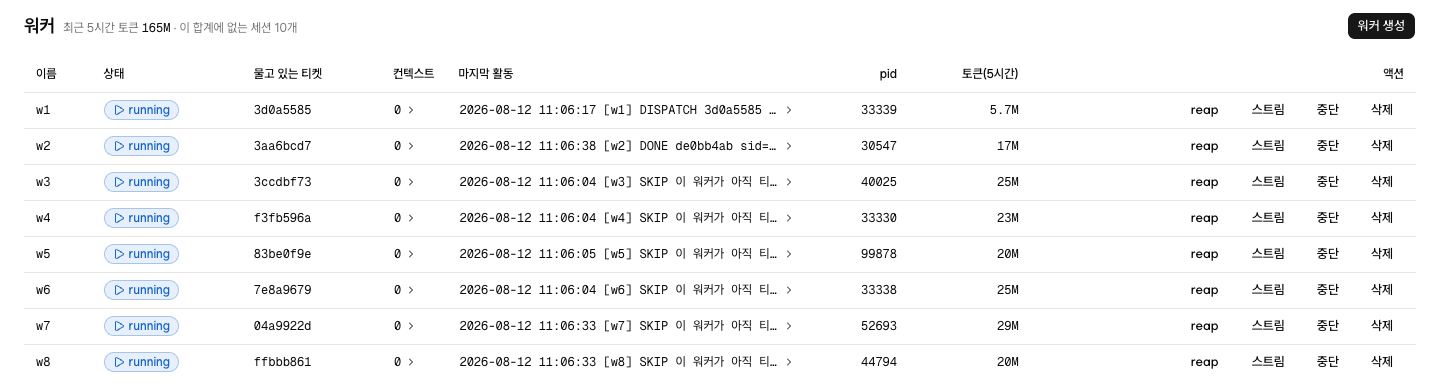
There are eight columns. Name · Status · Holding · Context · Last activity · pid ·
Tokens (5h) · Actions. The Context cell is itself a toggle. Press it and the list of files
this worker loads into a session unfolds below.
Every row shows a pid. A pid is the number the operating system puts on one running program. There
is one reason that number is in the table. The reclaim decision hangs on the process being
alive. Elapsed time is not the criterion. Whether a worker is running or stale turns on
whether that pid is alive right now. Alive is running, dead is stale. The next tick, when the
worker sweeps the queue, reclaims it. Elapsed time alone cannot tell a slow but healthy session
from a hung one.
This is also the screen where you add workers (see Workers).
The project home
Press the logo in the header and you are home. What sits here is one conversation about this
project. It is not a summary dashboard. Just write questions like what is w2 working on right now
or why is this protocol the way it is. An agent reads this project's queue, repo and protocols,
and answers.
- The lower half of the left panel has two groups.
Conversationsstarts at three lines and opens three more each time you pressShow more.Worker sessionsare the sessions this queue's workers held. Pick a finished one and you can ask on from inside that context. You cannot talk to a running session from here. That isInterject, on the ticket page. Schedules, which wakes this agent at times you set, is not in that lower half. It is on the surface row at the top of the panel, second icon from the left. How to make one and everything else about it is in Schedules.- The answer flows in as the characters arrive. If it takes too long, cut it with
Stop. - It mostly reads, but it writes too. It has five tools:
Read·Glob·Grep·Write·Edit. Where writing can reach is fixed, inside the queue. Persona profiles, protocols, worker scripts, the ontology, tickets. Everything else is blocked at the path. The worktrees where the workers work, and your project source, are both closed to this agent. - You can submit a request straight from here as well. Ask, in the conversation, to raise it as a
request and one
kind: requestticket appears for pm to take. It does not read dissatisfaction out of the conversation and file on its own. It writes only on the turn you ask it to.
The notification bell
One bell at the right of the header answers two things. Why this project is not moving right now, and what happened while you were away. The banners that used to pile up above the body have moved into this container. There are eight. The broadest comes first.
- The network is down — with no connection, nothing works even with auth in place.
- Stretches the queue sat stopped: 3 — while the Mac is asleep or off, the queue does not run.
One such stretch is one item, and the title says how many are not archived yet. That many lines
appear below it, and one line reads like
8/5 23:40 - 09:12, the stretch it sat stopped and whether it wasSleeporOff. The most recent is on top, and the date only attaches to times that are not today. Nothing was lost and there is nothing to fix. - Uncommitted changes are blocking dispatch — no worker on this project picks up a ticket (see Troubleshooting, the section on the whole queue being stopped).
- No Claude token — auth is missing, so sessions cannot start (see Authentication).
- Workers that die the moment a session opens — an outside cause.
- Tickets no one will claim — tickets stuck at
Assignedand absent from every lane. - Tickets waiting on an answer — a person has to write an answer before that project moves again.
- Tickets that won't make their due date — the due date has passed, or it is close and a prerequisite is still unresolved.
- The badge is the count of notifications that are on (0 to 8), not the sum of the items. Add eight things with eight different units into one number and nothing on the screen says how many of what that number is. Each item writes its own count into its own title.
- The bell is there at zero too. It presses, it opens, and it tells you
No notifications.
The two that pile up, the six that do not
Only two of the eight become lists. Workers that die the moment a session opens, and the return
notification. One line each time a session dies, one line for each stretch the Mac sat stopped. The
other six leave no line at all.
What splits them is tense. A dead session and a sleeping stretch are past events, so you can count
how many times they happened. The six are facts true right now. Two missing tokens are still one
"there is none right now". If the tickets waiting on an answer were five yesterday and three today,
the item is simply 3. Write yesterday's five down separately and the bell keeps saying it after
you unassign or answer. Then the bell and the queue say different things.
So waiting does not give the six a list. Come back after three days away and those six tell you how many there are now, not three days' worth. In exchange, the six go out when you act. Save a token, unassign, write an answer, set a new due date, commit the tree that receives the work, and they drop off at the next check five seconds later.
A worker that died overnight is still there in the morning
The workers screen and the bell look at different things. The line
The session failed immediately, under that worker on the workers screen, tells you how that
worker is right now. It clears after ten minutes. Those two on the bell tell you that it
happened. So they do not clear with time.
If four workers hit a limit and died at two in the morning and the Mac went to sleep at four, both are still on the bell when you open it in the morning. The workers table is already quiet. Nothing is wrong right now. Keeping someone who stepped away from seeing nothing at all is the whole job of these two.
The return notification comes up holding every stretch you have not archived. Sleep three times in three days and the item is still one, with three lines below it. The item does not multiply into three.
Where does Archive send it
Only these two get an Archive button. It sits at the bottom right of the item, on its own row
below the sentence. Reading the screen in Korean, it is 보관.
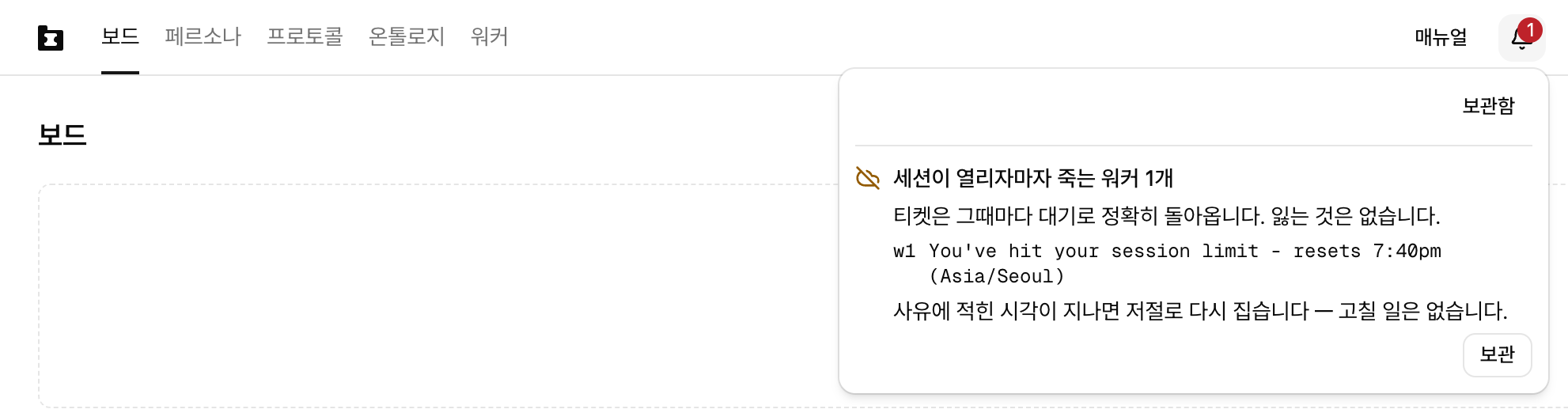
- Press it and the item disappears from the bell. There is one button per item, and everything listed at that moment goes in together. Four dead sessions on screen means all four; three stopped stretches means all three.
- At the same moment that failure line clears from the workers screen too. The bell and the workers table look at one judgment. A mishap you cleared from the bell never lingers on the workers screen.
- What disappeared disappeared only from the list. It was not deleted.
To see them again, turn on the Archived toggle at the right of the popover head (보관함 in
Korean). What you archived comes up newest first. A dead session shows the time, the worker name and
the reason the engine gave, as they were; a return shows the stretch it sat stopped and Sleep or
Off. Turn the toggle back off and you are back on the current screen. With nothing archived, it
tells you No archived notifications (보관한 알림 없음).

There is no undo button. Press it by mistake and it is still in the archive, so nothing is lost.
Clearing it does not bury the next mishap either. A new session dying is a new line, and the Mac sleeping again is a new stretch, so the item comes back.
This record belongs to this Mac
The list is not written into the queue. It stays inside this Mac. Those two are not facts about the queue but things that happened on this machine. The queue does not know the Mac slept. The log of a dead session is only on the Mac that started it.
- Look at the same project from two Macs and the bells differ. That is correct. Each Mac holds what it saw. Archive on the work Mac and the bell at home does not clear. That Mac has not seen it yet. The other way around, if only the home Mac slept, the work Mac has no such stretch at all.
- Move the queue folder and that project's list is gone. All you lose is the list; the mishaps
themselves do not vanish.
runner.logand the session logs travel with the queue, and the failure line on the workers screen carries that log's filename as it is (see Reading the logs). - The list does not grow forever either. When it overflows, the oldest get pushed out. Measured on
this Mac, a few weeks' worth fits. A few days away and you will not miss anything. On a day with
hundreds of deaths, though, only that day's last ones survive. To see the whole of that day, open
runner.log.
The token status bar at the bottom
The thin line at the very bottom of the screen carries one cell per engine this project's workers use. Keeping you from leaving the app to check how many tokens are left is all this line does.
- What a cell says depends on whether that engine reports its own remaining quota. When it does, you
get
n% used, which window that number covers, the burn rate over the last 10 minutes, and the reset time. - The
claudecell shows a%and a reset time too. That number belongs to one active account. The name standing next to the%is that account. The name and the gauge point at one account. - claude has two windows,
5hand7d, and the one used more is shown. Spend 3% of the 5 hours and 77% of the 7 days and you get77% used · 7d. The window name next to the%tells you which one it is. Whichever hits first is the real ceiling. - To read that number the app makes one very small call on your behalf. It sends
hito the cheapest model and uses only the response headers. Twenty-three tokens go back and forth, no more than once a minute per account. That call is not a worker session, so it shows up neither in the consumption on the workers screen nor in this bar's rate, but it does eat that much of the account limit. - When no value arrives,
Can't read the limitappears, and putting the mouse on those words gives the cause. It is a failure the next poll may fix. In that spot the accumulated tokens for the last 5 hours appear instead. If you have not put in an active account yet, that is an absence rather than a failure, so the spot is simply empty. - The window length is used exactly as the engine gave it.
5hand7dattach right beside the%. Put one window over two engines and one of the two becomes a lie. - The only thing that varies per worker is how much was used. What is left is one figure per machine, per account, and every worker shares that one pot. So account-level values are in this bar and per-worker consumption is on the workers screen.
- A consumption total is only caught once the session ends. A 90-minute session reads zero for 90
minutes, and the tokens of a session killed by a signal never arrive. That is why
· outside this total: n session(s)appears besideTokens, last 5 hourson the workers screen. Stay silent and people read it as "used less".
The settings dialog
One gear at the top right opens a dialog. A search field and a tree of items on the left, and the panel for the item you pick on the right. When you cannot remember an item's name, try the search field. It takes you there without walking the tree.
- Project — the first group in the tree. It only appears when you open settings from inside a
project. There is a single line under it, and its name is the name of the project you are looking
at. Press it and eight things for that one project come up in this order —
Resolved values,Ontology migration,Folder to import,Edit ontology location, the twelve metric cells,Name,Integration branch,Unregister. The four in the middle all deal with the ontology, so they stand together. Two of those four moved here from the ontology screen:Edit ontology locationand the twelve metric cells (see Archiving and the ontology).Integration branchis the branch sessions push to, the one you set when you created the project (see Your first project). - Authentication —
claudeis at the top, withcodex·grok·agyone line each below it. This is where you put in the long-lived token the cron-mounted workers use. The screen runs the issuing command for you. The details are in Authentication. - Keyboard shortcuts — where you see and change the screen's shortcuts.
- Usage stats — covered in Usage analytics, and how to turn them off.
- Language — picks the screen's wording between Korean and English.
- Webhook — when a ticket newly starts waiting on an answer, it sends just that fact outside as one line. Covered in Sending Awaiting answer somewhere else.
- Workers — the bottom line of the tree. At the top is
Machine-wide session limit, which sets how many sessions can be up at once on this computer, and below itAll workersgathers the workers of every registered project. TheProjectandStatusfilters narrow that list, andClear filtersputs it back (see How many to run at once, under this computer's ceiling).
Open settings from the home header and the Project group is not there at all. That place points at
no project, so there is no way to decide whose values to show. Use the gear on a row in the project
list instead, or open the switcher in a project's header and press the gear inside it. Both buttons
sit where they always did, with the same icon, and pressing either opens Settings with that
project's node already selected.
One more panel has no line in the tree. You have to type Multiplaying into the search field to
find it. Whether to register several accounts, and whether to split those accounts across workers,
is decided there (see Authentication, under multiplaying — the switch for keeping
several accounts).
Everything outside the Project group belongs to this computer and applies to every registered
project. Authentication, language, the session limit — none of them are set per project. Values
that do differ per project sit in two places. One is the eight things in the Project group you
just saw; the other is Worker settings, opened separately from the top right of the workers screen (see
Workers).
The project list
The first screen you see when you open the app. To get back here from inside a project, open the
project switcher in the header and press Manage projects at the bottom. Registered projects come
up as a table at the top, with the product introduction below it. The introduction is the same
writing as the page you see on the web. In the app, the list rides on top of it as the first screen.
- One row is one project. The columns are
Name·Path·Open·In progress·Done·Connected·Actions. Press the name for that project's board. - For a project that is not connected, the three count cells are empty. Not zero. Could not read and zero are different facts.
- The gear in the
Actionscolumn opensSettings. That row's project comes up already selected under the first tree group,Project, and the eight things from resolved values through unregister are there. No separateProject settingsdialog opens any more (see The settings dialog above). - The right of the header carries
Manual·Market·Star·New project·Settings.Settingshere is a word, not a gear. - With zero registered projects, the creation form unfolds where the table would be, and
New projectdrops out of the header (see Create your first project).
The market
Where projects on one Mac hand personas and squads to each other. When you want the writer you
raised in this queue over in the project next door, you put it here and pull it down instead of
copying files by hand. The store is one directory, ~/.config/dira/market/, and nothing leaves
this Mac. No account, no upload.
Two doors lead in: Market at the top right of the Squads screen, and Market in the header of
the project list.
Putting something up
You deploy from the origin project. Pick a persona in the left list of the Squads screen and
Deploy to market sits in the head of the right pane. Pick a squad and the same button shows up in
the same place. A persona with no profile yet does not get the button, since there is nothing to
carry.
- The dialog asks for
Note (required)andTags (comma-separated, optional). Leave the note empty andDeploystays dead. - That one line of note is the version's name tag. It sits next to the timestamp in the version
list, and it is what you read later in the origin's
Deploy historysection and in the market item'sVersionslist. Stack up four notes that sayfixand the list is just numbers. - Versions are plain integers. The first deploy is
v1and every press adds one. Deploy the same bytes twice and you get two versions. Old versions are never deleted. - Tags are what narrow the list later on the market screen. You can leave them blank.
What a deployed copy leaves behind
A deployed persona carries PROFILE.md and skills.md, and nothing else. A squad carries one
member list.
Memory does not travel. The retrospectives under memory/ are lessons that hold in this queue
only, so shipping them means the receiving side loads someone else's project history into its own
prompt. The session limit and the engine setting stay behind for the same reason. Whoever imports
it gets the profile and the skill lines, and builds its own memory from there.
The skill names written in skills.md cross over as text. If a skill is not installed on this Mac,
the line is all you get. Importing from the market never installs a skill for you (see
Personas).
Deploying a squad deploys its members first
A squad carries member names only. So if a member persona is missing from the market, whoever imports the squad gets a shell with names in it. Deploy order closes that hole.
Press Deploy to market on a squad and it counts the members that are not in the market yet, then
asks first with Some members aren't in the market. Choose Deploy them too and it puts the
members up one at a time, then the squad. Each member gets the same note line you wrote for the
squad. Cancel and the squad does not go up either; nothing is left half deployed. If one member
fails on the way, it stops there and skips the squad. Members already up stay up, and pressing
again picks up where it left off.
Finding something
The market screen lives outside any project. It is the same list whichever project you opened it from, and the project panel on the left is not there.
- Two tabs,
PersonasandSquads. One card carries the name, the owning project, the latest version, the tags and a favorite star. If anyone has imported it,Imported inand a count ride along. - The search box sweeps the name, the owning project's name, the tags and the first line of
PROFILE.md. Press a tag and only that tag is left. Both filters show as badges at the top andReset filtersclears them in one press. - Turn a star on and it stays on through a refresh. Favorites are per Mac too.
- Press a card and the detail opens: the body of
PROFILE.md, the skill lines and the version list, all read-only. You cannot edit anything from the market. Editing happens in the origin project, always.
Importing
Import at the top right of the detail opens a dialog.
Target projectis where it lands. With no project registered yet, you get a note telling you to register one first.Namecomes pre-filled with the market item's name and you can change it right there.- Import a squad and it pulls in any member persona the target is missing, at the latest version.
The result screen lists them under
Members brought along:. Names the target already has are left alone, because one squad should not overwrite a persona you have been editing locally. If a member is missing from the market as well, the import still succeeds and that name shows up separately underMembers missing from the market:.
When the name is already taken
If a persona by that name already sits in the target, Import stops right there and offers two
ways forward. Nothing is overwritten quietly.
OverwritereplacesPROFILE.mdandskills.md, and those two only. That persona'smemory/, its session limit and its engine setting stay put, because nothing in the deployed copy gives a reason to erase them.Different namesends you back to theNamebox with the text selected. Change it, pressImportagain, and it lands under the new name with the old one untouched.
What the origin sees
Pick that persona in the origin project and open the Profile tab: two more sections sit at the
bottom right, below the memory section. For a squad there are no tabs, and the same two sit below
the Members section.
Deploy historylists what you put up, newest first, one line each with the version, the time and the note. Never deployed readsNot deployed yet.Installsstacks one line per import: which project took it, which version, and when. Empty readsNone yet.
A newer version raises a badge on the receiving side
On the Squads screen of the project that imported it, a badge like Update available v3 sits
next to the persona's name in the head of the right pane. It shows only while the installed version
is behind the market's latest. Squads carry the same badge.
Press the badge and it asks once, Fetch the latest version?. Choose Fetch update and that
version's PROFILE.md and skills.md overwrite what is there, and the badge goes away. This
can't be undone. If you had been editing the imported profile, those edits go with it, so move
anything worth keeping out first. Memory is untouched here as well.
An imported persona is not tethered to its origin. Edit it after the import and it is simply a file in that project; the badge only tells you the two versions have drifted apart. There is no two-way sync.
The way to the manual and back
Manual at the right of the header opens this document. The screens inside a project share the
header, so pressing it from the board and pressing it from the workers screen land in the same
place.
Open this document from the app and the manual header carries Manage projects as well. Those two
buttons are the round trip for breaking off reading, crossing to a screen, and coming back. Reading
on the web, you do not have that button. It only appears inside the app.
Next is Talking to a running session.