Submitting a request
You made a project in the last chapter. Now tell dira what you want out of it.
Submitting a request, issuing a ticket
Two buttons sit at the top right of the board. New request on the right is the front
door. New ticket on the left is the side road.
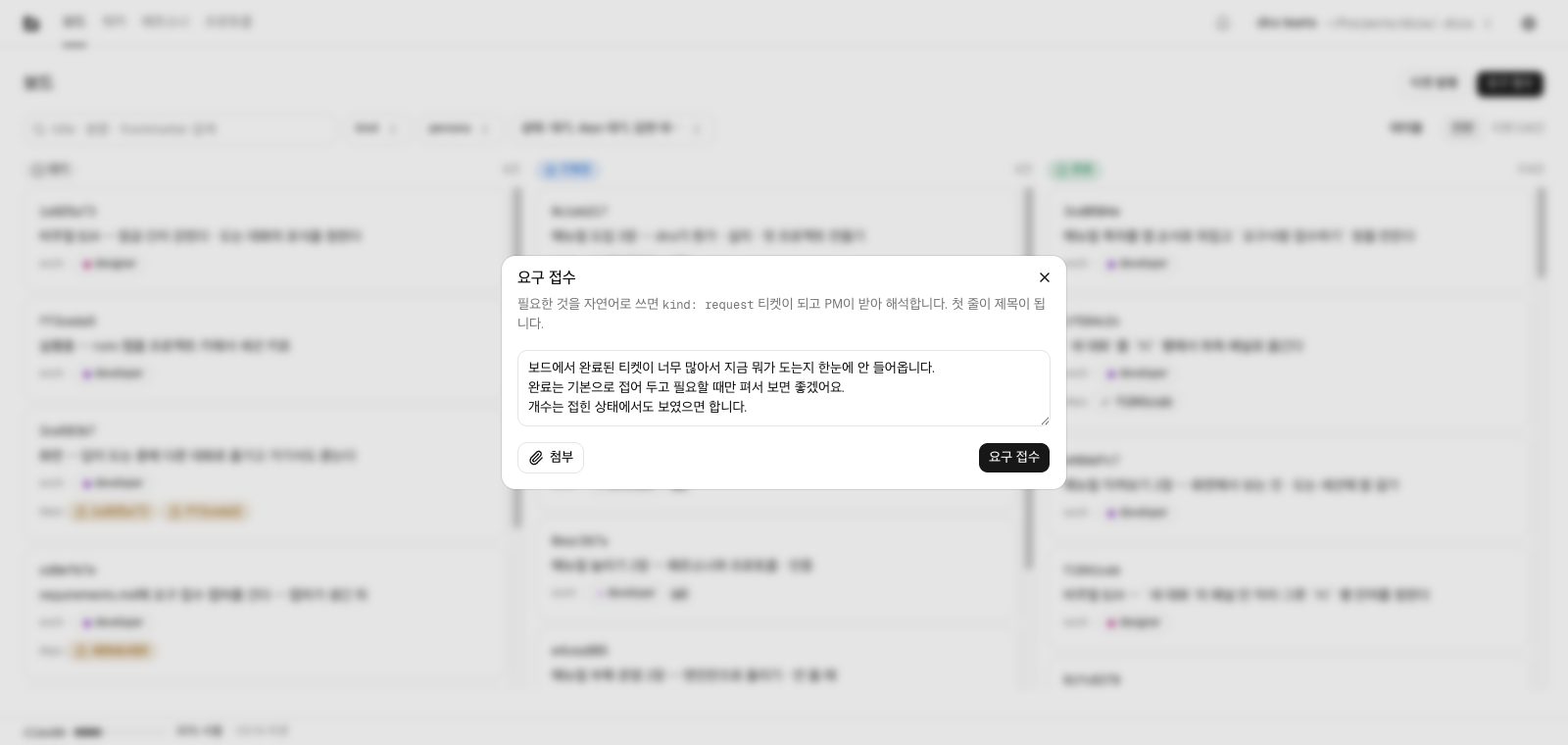
New ticket makes you choose the title, the kind, the persona, and the deps yourself. It is a
form for someone who already knows what happens, who does it, and in what order.
New request is one field of plain language. Nothing needs splitting up first. Write what
you want in whatever sentences you want; the splitting is the next section's job.
- The first line becomes the title (cut at 80 characters). You do not write a title separately.
- The body is stored exactly as you wrote it. The app does not reword your sentences or fill in a skeleton.
⌘/opens this field from anywhere inside the project. The button lives on the board only, but a request can occur to you while you are looking at a worker or reading a ticket.- Once it is in,
Request received. The PM will review it shortly.appears in the same spot. The screen does not drag you anywhere; press theSee the request you submittedlink below it to go to that request in detail. If you had an epic selected when you submitted, this sentence names that epic instead (Epics).
What happens after you submit
Submitting makes one kind: request ticket in the queue, assigned to the pm persona.
Within a minute a worker takes that ticket and starts a pm session. The pm session reads and
splits. One request turns into several work tickets, each with its persona set and as many
deps as the order needs. Each split ticket carries the hash of the original request in req:.
A hash is the eight-character name every ticket gets. That is why the request detail shows you
the tickets it became, and why a ticket detail takes you back to the request it came from.
When the splitting is over, the original request goes to Done. That does not mean the work is
finished. It means the interpretation is finished. The actual work is in the tickets below
it, and workers take those one by one, each starting a session as its own persona.
Adding a decision to a request that is already being worked on
You can also put in a request from the home chat on the project home. Afterwards it is common to add a decision in the same chat, something like "let's call the token this," and by then a worker may already have claimed the request. So right before writing the decision, the home chat looks up that hash in the queue again and acts on the state it finds.
| State of the request | What the home chat does |
|---|---|
| Open | Edits the request body. The next pm session reads the edited body |
| In progress | Adds a ## 추가 결정 - 홈 대화 section (additional decision - home chat) to the end of the request body, quoting what you said, and sends one interject line to the running session |
| Done | Leaves the original request alone. Makes a new request and writes the original hash in its ## 맥락 (context) section |
There is a reason it does two things when the request is in progress. The section in the body is
for a new session: if this one dies and the ticket is dispatched again, the next session reads it.
The running session does not reread a body it has already read, so the decision only reaches it
through the interject. The interject says, in Korean, that a decision was added to the
## 추가 결정 - 홈 대화 section at the end of the ticket body, followed by a one-line summary.
A done request has already been split by pm. The new request is picked up and read by pm like any other.
If the lookup finds no file for that hash, the home chat tells you it could not find the ticket in the queue and stops. If it finds two or more, it shows you every filename and writes nothing either. An orphan file already exists at that point, so clean it up first with the troubleshooting section linked at the end of this section.
Checking that it reached the session
Open that request's detail and find the step that is running in the Progress record. If the sentence is there as an interject line, the session got it (Talking to a running session).
Sometimes the home chat tells you it could not send the interject. That happens when the ticket's
inbox: is empty, or when no session is reading that inlet. Put the decision in yourself, in the
input field at the bottom of the Progress record on the request detail. If there is no input
field, no session is running right now, and the next session will read the
## 추가 결정 - 홈 대화 section in the body.
The home chat does not append to ticket files with shell commands. Appending to an old path creates a new file with no frontmatter. If such a file already exists, the board warns you (Troubleshooting §A ticket file warning appears on the board).
Asking back, and Awaiting answer
When pm decides it cannot split something, it does not guess. It leaves a question and takes its hands off.
That request then wears an Awaiting answer badge on the board, with the number of days it has
been sitting there. Open the request detail and the question is in the thread, with a field
underneath for your answer. Write the answer and the request goes back to Open, and this
time the pm session reads your answer along with everything else and carries on. It may ask more
than once. Questions and answers pile up in the thread, paired by number.
Until an answer is there, no worker touches that request. It is locked so that sessions do not
burn asking the same question over and over. So Awaiting answer is not a fault. It is a step
that was in the design from the start, and it stands there waiting for you.
Autopilot
How much a session asks you is set by Autonomy in the settings dialog, a level from 1 to 5
(The screens, under the settings dialog). Even at 5 a session still
stops and asks when it needs something only a person has: a password, a login, a payment method,
a two-factor code. Autopilot takes that last exception away too.
Pick 5 and the Autopilot switch right under it can be turned on. At 4 or below the switch shows
off and does not respond. Flipping it saves at once, and takes effect from the next dispatch.
With it on, sessions never create an Awaiting answer. They write no question and no ## 블록.
Even when a login looks necessary they keep going: credentials already on this computer, another
account or tool, a workaround, a smaller scope. They make up the ways to succeed and try them one
by one.
This mode is risky. Sessions push on without asking you. On top of what level 5 already
allows (force pushes, engine edits), a session may narrow or change scope you would have wanted to
decide, and still close the ticket as done. The handoff ceiling no longer applies either, so work
that never finishes can keep spawning handoff tickets. While it is on, read the decision lines at
the end of ## 결과 more often than usual.
Only when there is truly no way left to try does a session ask. That Awaiting answer shows on the
board as a red Autopilot failed badge. How it differs from an ordinary one, and how to answer it,
is in The states a ticket passes through, in the Autopilot failed paragraph.
Lower the level to 4 or below and autopilot stops having any effect, even if the switch was left on. Raise it back to 5 and the switch comes back the way you left it.
Your part in this
You put in a request, pm splits it, and workers take the split tickets one at a time. Where one of them gets stuck, someone asks, and you answer. Writing tickets and deciding who to hand them to is not your job.
There are times you will want to write one yourself: a single bug, a single typo, anything with nothing to split. That is in Writing a ticket yourself.
Next is The screens.