Create your first project
dira handles protocols, tickets, and personas one project at a time. Projects do not interfere with each other.
The screen you see the first time
This is home with zero projects. The band along the top carries the dira logo and three
buttons (Manual · Star · Settings), and the body opens with dira and a single line. That
line is No projects registered yet. Make one and you're started. Below it,
Already have a .dira? Register it. and a Register project button run across in one row, and
after that comes the New project card. Its form is already open.
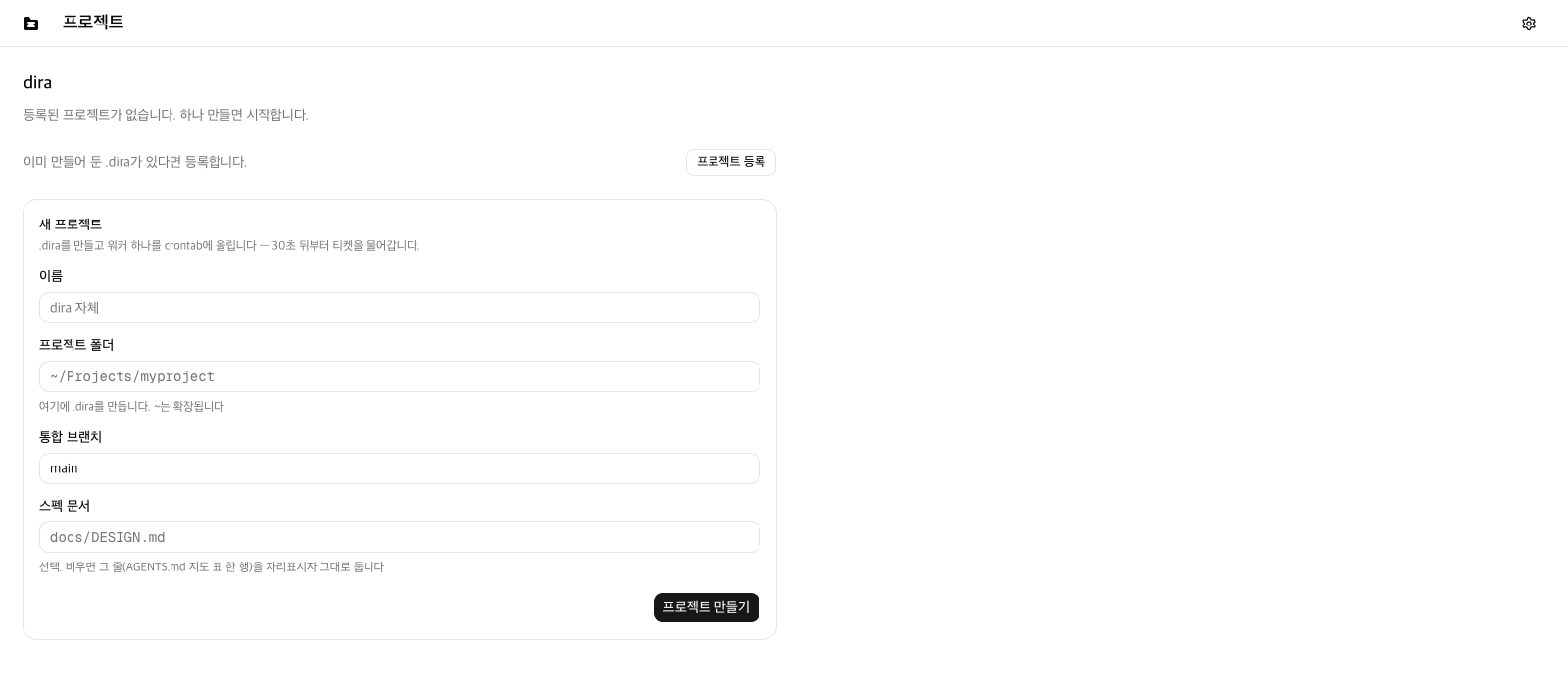
That form is what this chapter fills in. The header has no New project button. When the form
is already unfolded in front of you, there is no reason to put a button that opens it on the same
screen. The register row above is the side road, for anyone who already made a .dira or took
over a project someone else was using. First time through, walk past it.
Keep scrolling below the form and the product introduction continues. It is the same writing as the page on the web, and in the app the project section rides on top of it as the first screen. For now, just fill in the form.
What goes in the form
One line sits under the card title. Everything this form does is in that sentence.
Creates .dira and puts one worker in crontab — it starts picking up tickets 30 seconds later.
crontab is the schedule cron reads. Once a line goes in there, your Mac calls the worker every 30 seconds on its own.
| Field | What goes in |
|---|---|
Name | The name you will see on screen. Below it, the name used in the URL (the slug) shows up as a preview |
Project folder | The parent of .dira. Write something like ~/Projects/myproject and .dira gets made under it. The help text below the field says the same (.dira goes in here. ~ is expanded). If the folder is missing, it gets made |
Integration branch | The branch sessions push results to. The default is main |
Spec document | Optional. The path to your project spec (docs/DESIGN.md, say). A file that does not exist yet is fine to write in advance |
Project works in Korean | A checkbox, not a field. Leave it on and all five personas also get the three skills for writing and fixing Korean prose. It comes up checked when the app is in Korean and unchecked when it is in English, so either leave it or click once. Personas spells out what gets added |
The ~ in that help text is shorthand for your home folder. Writing ~/Projects/myproject
means the same place as /Users/<your name>/Projects/myproject.
Press Create project.
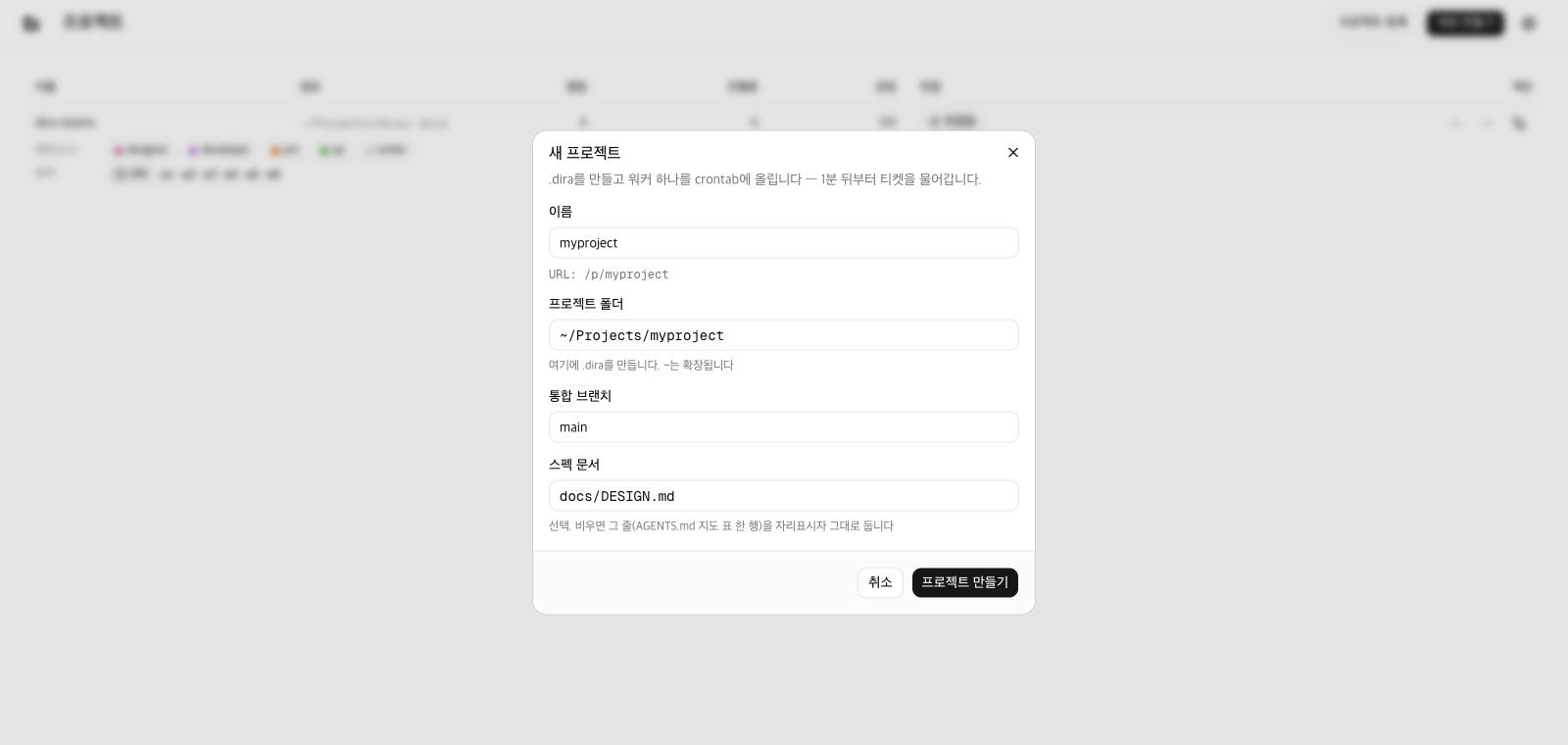
On a screen that already has projects, the same form opens as a dialog. New project above the
list is the trigger, and the fields, the help text, and the submit button are the ones you just
filled in.
Your project exists now
Under the folder you picked, .dira gets laid out like this.
<project>/.dira/
  tickets/                                    the empty queue
  team/apm.yml                                the team declaration. Pins the dira-protocols and squad-default packages by version
  team/protocols/AGENTS.md                    collaboration protocol source, branch and spec document substituted in
  team/protocols/apm.yml                      wraps that AGENTS.md as a local package
  team/.gitignore                             keeps install output (apm_modules/ and the like) out of git
  team/apm_modules/                           installed packages. The default squad and its five personas live here
  protocols/                                  collaboration documents unpacked after install. AGENTS.md, CORE*.md, tickets.md and more
  workers/w1.sh                               one worker, executable bit and all
  integration-branch                          the integration branch name on one line, the value you typed in the form
  push.sh                                     the helper workers call to push to the integration branch
  dispatch-gate.sh                            the gate that checks the integration-branch checkout is clean before a dispatch
  self-heal.sh                                delete the app and the worker retires itself
  watchdog.sh, watchdog_gates.py, watchdog_alert.py   the dispatch watchdog
browse.sh, browser.sh the browser shells a worker session uses to open the webOn top of that come the crontab entry (the line that calls w1.sh every 30 seconds) and the
registry entry (which keeps this project in the app's list). Inside <project>, only two
things reach outside .dira. A .dira line is added to .gitignore, and if the folder is not
a git repository yet, it runs git init and makes a first commit holding only that
.gitignore. Your project source files are left alone.
Personas and the squad come from the squad-default package that team/apm.yml pulls in. It ties
five personas, pm, developer, qa, designer and writer, into one squad called default,
with pm as the leader. When you issue a ticket, this squad is what the assignee field is set to,
and a ticket issued that way goes to pm. Squads covers it.
The packages are downloaded when the project is created. If the network is down or the install
fails, the project is still created and the result screen shows the reason on one line. In that
case team/apm_modules/ and protocols/ hold nothing yet, and the worker tries the install again the
next time it runs.
There is one worker. That means one ticket runs at a time. If you want two or more at once, make more workers. Workers covers it.
Now it is your turn to ask
On success a row appears in the list and a result card takes the form's place. The card has three lines: how many files were made, the engine repo path it derived, and then the last line.
In crontab — it starts picking up tickets 30 seconds from now
Once you see that line, you are done. The card carries Open the board and Close together,
and the result stays open until you press Close. If you are not in a rush, read it before you
close it. This is where you catch a path you typed wrong.
Permission dialogs, failed registration, an existing .dira
macOS raises a permission dialog. Writing to crontab needs the App Management permission.
While it is working, Press [Allow] if a permission window opens — registering the crontab line waits on that answer.
sits below the form. Press Allow and the registration carries straight on. Leave the dialog
alone and only the registration falls over, three minutes later.
Even if only the crontab entry fails, the project is made. Nothing that was created gets rolled back, and the screen puts up the registration command along with the reason. Copy it into a terminal and it is finished right there. That side road only appears when the registration failed.
If the folder you picked already holds a .dira, nothing is made. When there is a tickets/ or
workers/ inside it, you get <path>/.dira is already a dira project. Register it instead of creating it.
and a button that opens the register dialog. This app has no path that writes over a file that
is already there.
The queue is still empty
Your project is running, but there is no ticket to take. In the next chapter you put what you want into one field, and pm splits it into tickets.
Next is Submitting a request.